> For the complete documentation index, see [llms.txt](https://docs.intranet.ai/llms.txt). Markdown versions of documentation pages are available by appending `.md` to page URLs; this page is available as [Markdown](https://docs.intranet.ai/sharepoint-intranet/components/bulletin-boards.md).
# Bulletin Boards
The component to strengthen the corporate community with a space in your SharePoint intranet where to post personal announcements.
## What is Bulletin Boards
Our component facilitates the **exchange of information among intranet users**, motivating them to connect with colleagues for **buying or selling an item** or **organizing an event**. It strengthens the company community through a direct and spontaneous medium.
Everyone in the company has access to the bulletin board. The **free-text search bar** allows you to filter content to **find announcements** of your interest. Once found, simply click on the **email icon** to **get in touch** with the offer owner. The **side button** allows you to **publish an announcement** with a title, a description, and a photo from your personal profile.
{% hint style="info" %}
Explore the **advantages** of Intranet.ai **Bulletin Boards** by [**clicking here**](https://intranet.ai/features/bulletin-boards/) to learn more.
{% endhint %}
***
## Add the Bulletin Boards web part to a SharePoint page
* If your page is not already in edit mode, click **Edit** at the top right of the page.
* Hover your mouse above or below an existing web part and you'll see a line with a circled +, like this:
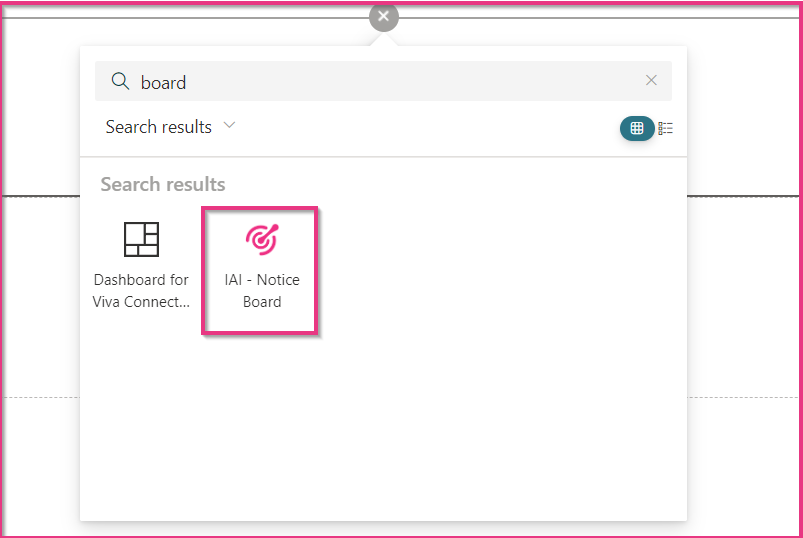
* Click on it and, in the web part search box, enter **Board** to quickly find and select the Bulletin Boards web part, which is named "IAI - Notice Board".
* Click the **Edit** **properties** button on the left of the web part to open the property pane and set options such as View settings and General settings. See below for more information on these options.
***
## Configuration
1. [View settings](#view-settings)
2. [General settings](#general-settings)
### View settings
In this section you can customize the appearance of your application by adjusting various layout settings.
First of all, the **layout of the web part** can be selected. Two options are available: **Default** and **Compact**. The Default layout is suggested when the web part is set up on a dedicated page, whereas the Compact layout is recommended if the web part is set up on a page that already has content, such as the home page.
Then, you're asked to set the following options:
* **Do you want to hide the background?** You can choose to hide or display the web part background. The default setting is No. This means that, by default, the web part is characterized by a white background. If you enable this option, the white card background will be completely removed, allowing the content to appear directly on the page. As a result, the web part will be transparent, showing either the selected background image or the chosen SharePoint page color.
* **Do you want to hide the shadow?** You can choose whether to show or hide the background shadow. The default setting is No. This means that, by default, the webpart is characterized by a subtle depth effect that can make the web part stand out more against the rest of the page. If you enable this option, the shadow behind the background will be removed, giving the web part a flatter, cleaner look without any depth.
* **Select the type of shadow you want to use**: if you decide to set the background shadow, a further configuration will appear and you can select the style from **High contrast, Light, or Dark** options.
* If you select **High contrast**, this option creates a strong, bold shadow effect that provides a high level of contrast between the background and the content.
* By choosing the **Light background shadow**, it will create a soft and subtle effect, giving a more delicate and gentle depth to the background.
* Finally, the **Dark background shadow** style provides a darker, more intense effect, adding depth and emphasizing the background even more.
* **Enter the title of the application:** thanks to this configuration, you can customize the application title. If you keep it blank, SharePoint will show the default title "Notice board" at the top left angle of the web part.
* **Do you want to hide the title?** Here you can select whether to show the web part title or hide it. If set to visible, the web part title will appear on the left side.
### General settings
This section allows you to configure general settings such as the data source, the sorting criteria for the results, the number of posts to load, and more.
{% hint style="info" %}
* If you're not in edit mode already, click **Edit** at the top right of the page.
* Select the Bulletin Boards web part, then click the **Edit properties** button on the left side of the Bulletin Boards web part.
{% endhint %}
* **Enter the site from which to take the list**: enter the URL of the site where the Notice Board Posts list is located. Usually, it is the intranet site.
* **Select the list**: select **Notice Board Posts**.
* **Enter the text for the add post button**: here, you can customize the **text of the button** that allows users to add posts. If you leave this field empty, the text "Add a post" will be displayed.
* **Select a property to sort documents**: here, you can choose from three ordering criteria: **Date created**, **Post title** and **Post author**.
* **Select the direction of the sort**: if you've selected **Date created** as an ordering criterion, here you can choose between **From the least recent** and **From the most recent**. If you've selected **Post title** or **Post author** as an ordering criterion, here you can choose between **From A to Z** and **From Z to A**.
* **Enabling approval?** You have the possibility to implement an **approval flow** whereby **advertisements are published** only **after an approver has checked and approved them**. In order to add this flow, two main actions are required:
1. Implement the flow manually with **Power Automate**;
2. Activate the **Enabling approval?** option while configuring the web part.
* **Select users or approver group**: enter the **Azure AD group** including the approvers.
* **Enter the text to be shown as a disclaimer**: here you can **customize the text shown as a disclaimer**. This text informs the user that the post will be published after being approved. If you leave this field blank, the default text will be used, which is "The announcement will be visible after the approval".
* **Enter the number of posts to load**: specify how many advertisements you want to make visible in the web part.
* **Enter the duration of the posts (months)**: specify for how many months you want the posts to be visible in the web part.
* **Number of photos that can be uploaded**: set the maximum number of pictures the user can upload when creating a post. Please note that if you select 0, this feature will be deactivated, so users won't have the possibility to upload photos.
{% hint style="info" %}
If you change the maximum number of photos from 1-5 to 0, any pictures users may have attached to posts published previously will be hidden.
{% endhint %}
* **Enter the link to the page with the extended version**: enter the link to the page in which the extended version of the web part is inserted. This field is to be filled in only if you have configured the web part with the Compact layout.
***
## Create a new post
Typically, end users add new posts to the bulletin board directly from the page where the web part is configured. To create a new post, you just need to click on **Add a post**. This opens a panel directly on the page, where you can write the **title** and the **text** of the post. You can also upload one or more pictures through the **Load images** button, if this functionality is active. Please note that the Load images button is visible only if a number from 1 to 5 has been set as maximum number of photos to be uploaded (see [General settings](#general-settings)). When you have completed the post, click on **Save** to publish it.
Alternatively, posts can be created from the Notice Board Posts list, where all posts are saved.
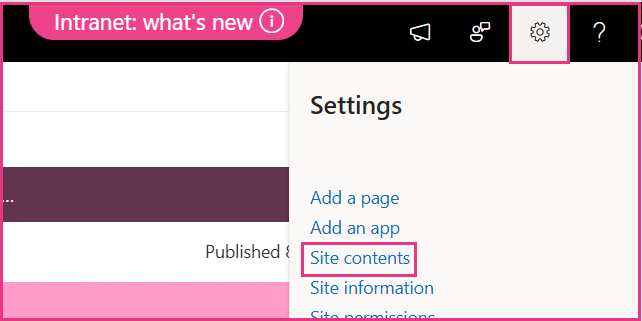
To access the Notice Board Posts list, click the Settings icon in the top-right corner of your Intranet’s home page, then click **Site contents**.
* Select the list named **Notice Board Posts**.
* As mentioned above, this list contains all posts added to the digital board. Here, you can add a new post thanks to the **+ Add new item** button.
* Clicking **+ Add new item** opens a panel with a number of fields to fill in:
* The **Title** and **Body** fields are mandatory: here, you need to type the title and the text of the post.
* **Approval date**, **Approver**, **Approvers emails**, **Status**: if you have decided to implement an approval system, the information related to the approval flow will be saved in these fields. For further information about the approval flow, see [General settings](#general-settings).
* **Attachments** such as photos can be added, if necessary.
Click **Save** to add the post to the digital board.
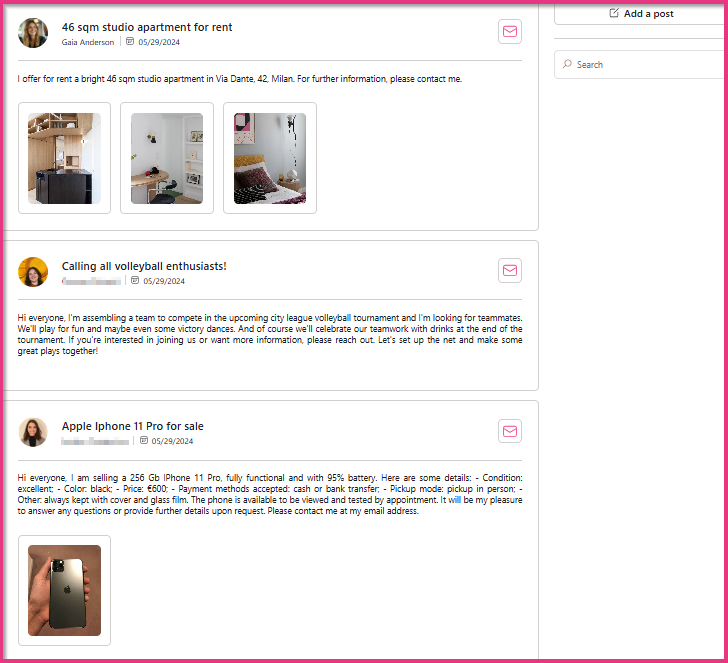
Here is an example of how the Bulletin Boards web part is displayed on the page:
The web part is composed of the following elements:
* A **list of posts**, which includes the title of the post, the name and profile picture of the author, the creation date and the text of the post.
* An **email icon** which can be clicked to contact the post author.
* A **button** which can be clicked to **publish a new post**, as explained above.
* A **search bar** which allows you to find posts of your interest.
***
## Configure the Notice Board Posts list
The Notice Board Posts list requires a **specific configuration** so that SharePoint intranet visitors can **publish posts**. To learn how to configure this list, read the [dedicated guide](https://docs.intranet.ai/sharepoint-intranet/other-configurations/configuration-of-favorites-lists-and-user-lists). In particular, please refer to the **Second type of configuration** section.
{% embed url="" %}
 * Click on it and, in the web part search box, enter **Board** to quickly find and select the Bulletin Boards web part, which is named "IAI - Notice Board".
 button on the left of the web part to open the property pane and set options such as View settings and General settings. See below for more information on these options.
***
## Configuration
1. [View settings](#view-settings)
2. [General settings](#general-settings)
### View settings
In this section you can customize the appearance of your application by adjusting various layout settings.
button on the left of the web part to open the property pane and set options such as View settings and General settings. See below for more information on these options.
***
## Configuration
1. [View settings](#view-settings)
2. [General settings](#general-settings)
### View settings
In this section you can customize the appearance of your application by adjusting various layout settings.

 button on the left side of the Bulletin Boards web part.
{% endhint %}
button on the left side of the Bulletin Boards web part.
{% endhint %}