> For the complete documentation index, see [llms.txt](https://docs.intranet.ai/llms.txt). Markdown versions of documentation pages are available by appending `.md` to page URLs; this page is available as [Markdown](https://docs.intranet.ai/sharepoint-intranet/components/sliding-news.md).
# Sliding News
A customizable news banner that can be shown across multiple pages of the SharePoint intranet.
## What is Sliding News
This customizer allows you to **display the latest intranet news in a sliding banner** that is fully customizable in its colors, position and content. The news items scroll inside the banner, giving users an immediate and dynamic overview of what is happening in the company.
Unlike a classic news web part, Sliding News **is not added to a single page**: the same banner can be **shown on several pages at the same time** and, if needed, **excluded from specific pages**. This makes it ideal for highlighting important communications across the whole intranet without having to configure the web part page by page.
As with [Company News](https://docs.intranet.ai/sharepoint-intranet/components/company-documents), Sliding News lets you **categorize news through metadata (tags)** and **target news to specific audiences**, so that each user sees the content that is most relevant to their activities. It also supports **multilingual intranets**, allowing you to show only the news translated into the language of the page.
***
## Activate Sliding News on the intranet
Sliding News is a **SharePoint customizer**: it is already part of the intranet pages, so you **don't need to add it to a page as a web part** or edit any page. To activate the banner, you just need to configure it through a dedicated **SharePoint list**, where each item corresponds to one banner. The pages where the banner appears are defined directly in the list item.
*
```
```
* First of all, click on the **Settings** icon on the top right of the page, then click on **Site contents**.
* Scroll down and select the **Sliding news** list.
* Click on **New** at the top of the list to create a new item.
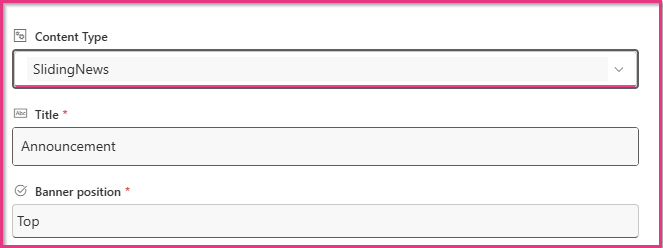
* In the **Content Type** field, make sure **SlidingNews** is selected.
* Fill in the fields of the form as indicated in the [Configuration](#configuration) section.
* Click on **Save**: the banner will be activated and will automatically appear on the pages you have selected.
***
## Configuration
1. [Banner settings](#banner-settings)
2. [Data sources](#data-sources)
3. [Filters settings](#filters-settings)
4. [Pages settings](#pages-settings)
5. [Display settings](#display-settings)
6. [Color settings](#color-settings)
### Banner settings
These settings define the basic information of the banner and where it is placed on the page.
* **Content Type**: select **SlidingNews**. This content type contains all the fields needed to configure the banner.
* **Title**: enter a name to identify the banner within the list (for example, "Test" or "Homepage banner"). This name helps you recognize the configuration when you have several banners.
* **Banner position** (required): select where the banner will be displayed on the page, **at the Top or at the Bottom** of the page.
### Data sources
* **News sites**: enter the URLs of the sites from which you want to take the news to show in the banner. If you want to use more than one site, **separate the URLs with a pipe (|)**, without spaces between URLs and pipes.
* **Use hub site**: you can choose to take news from the whole hub. If you select **Yes**, the **News sites** field will be ignored and the search will be made through all the sites associated with the hub site.
### Filters settings
Fill out this section if you need to set which news each user will see in the banner:
* **News tags filter**: enter the internal name of the managed property preceded by **owstaxId**, then a colon (:) followed by the value you want to filter by. To use more than one filter, separate them with a pipe (|), without spaces. For example: `owstaxIdNewsDepartment:IT|owstaxIdNewsDepartment:Marketing`. To find the managed property and its values, see [Access the term store](#access-the-term-store) below.
* **Filter by audience**: if you **enable** this option, news will be visible only to the targeted groups. If you **disable** it, all news will be accessible to everyone within the intranet, regardless of their group or role.
* **Max news to show**: indicate the maximum number of news you want to display in the banner (for example, 3).
* **Hide untranslated news**: on translated pages, by default the banner also shows news that hasn't been translated. This option allows you to display only the news translated into the language of the page. If you **disable** it, untranslated news will also be visible, appearing in their original language.
### Display settings
In this section, you can define how the news are shown inside the banner, their order and the interaction options for a tailored user experience.
* **Open news in new tab**: if you enable this option, clicking on a news item will open it in a new browser tab. If you disable it, the news will open on the current page.
* **Order field name**: enter the internal name of the field used to sort the news (for example, the publication date field).
* **Order ascending**: if you enable this option, the news will be sorted in ascending order based on the field set above. If you disable it, they will be sorted in descending order (for example, from the most recent to the oldest).
* **Title all caps**: if you enable this option, the news titles will be displayed in capital letters.
* **Show description**: if you enable this option, the content of each news item will be displayed next to its title.
### Pages settings
These settings define on which pages of the intranet the banner is displayed. If these fields are left blank, the banner will appear in all pages of the site.
* **Pages to include**: enter the URLs of the pages where you want the banner to appear. Separate the URLs with a pipe (|), without spaces between URLs and pipes.
* **Pages to exclude**: enter the URLs of the pages where the banner must **not** be displayed, using the same format. This is useful when the banner is shown on a whole group of pages but you want to hide it on some of them.
### Colors and Active settings
You can customize the look of the banner so that it is aligned with your brand. If you leave these fields blank, the banner will use the intranet theme colors. All color fields accept **any CSS format**: keyword (e.g. `white`), hex (e.g. `#1E3A8A`), rgb or rgba (e.g. `rgba(30, 58, 138, 0.9)`). Finally, you can decide whether or not to activate the banner.
* **Banner title color code**: set the color of the banner title.
* **News text color code**: set the color of the news text.
* **Background color code**: set the background color of the banner.
* **Is active**: if you enable this option, the banner will be active and appear according to the specifications you indicated in the configuration settings; otherwise, it will not be shown.
***
## Access the term store
To access the **Term store**, take the following steps:
1. Click on the **Settings** icon at the top right of the page, then click on **Site information**.
2. Click on **View all site settings**.
3. Under Site Administration, click on **Term store management**.
4. You will land on the **Term store**, which is the area where you can create **term sets** and **terms**, i.e. **tags** to categorize your content. Here you need to copy the unique identifier of the taxonomy, which is a code composed of numbers, letters and hyphens.
If you want to discover more about filters and the Term store management, [click here. ](https://docs.intranet.ai/configuration/creation-of-tag-systems-for-news-and-documents)