> For the complete documentation index, see [llms.txt](https://docs.intranet.ai/llms.txt). Markdown versions of documentation pages are available by appending `.md` to page URLs; this page is available as [Markdown](https://docs.intranet.ai/sharepoint-intranet/components/surveys.md).
# Surveys
The component to make the intranet more interactive, increasing daily visits.
## What are Surveys
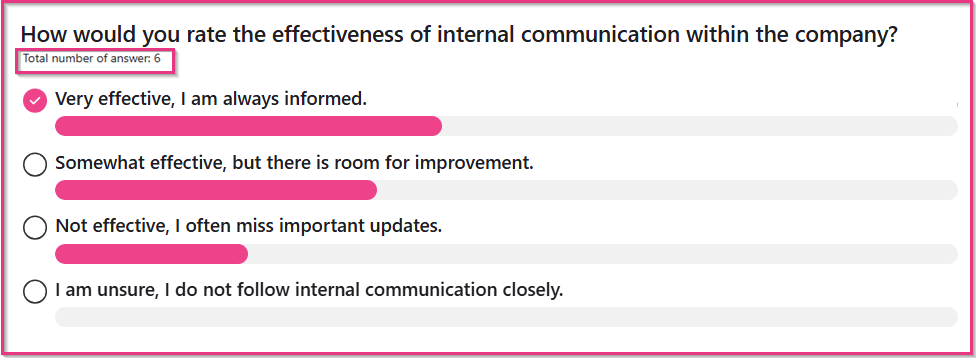
The Surveys web part is designed to **enhance user engagement** and **feedback collection** within an intranet environment. This tool allows administrators to create **dynamic, interactive forms** that gather **valuable insights and responses from users** efficiently and effectively.
Our web part facilitates the creation of customizable forms that can be used for a variety of purposes, such as **surveys**, **polls**, **feedback forms**, and more. The main advantages of Surveys are as follows:
* **Enhanced user engagement**: the Surveys web part encourages **active participation** from users by providing an **intuitive and user-friendly interface**.
* **Customization and flexibility**: Surveys is characterized by a high level of customization, not only in terms of **content** but also in **graphical design**. Surveys can be tailored to reflect the organization's branding, particularly with **customizable colors**.
* **Real-time data collection and analysis**: with Surveys, data collection is instantaneous. **Responses are recorded in real-time**, allowing administrators to access and analyze the data promptly.
* **Multilingual support**: questions and response options can be **translated into various languages**, which means that the web part will adapt to **each user's browsing language**. This feature allows you to **engage all company locations** with a single survey.
{% hint style="info" %}
Explore the **advantages** of Intranet.ai **Surveys** by [**clicking here**](https://intranet.ai/features/instant-form/) to learn more.
{% endhint %}
***
## Add the Surveys web part to a SharePoint Page
* If your page is not already in edit mode, click **Edit** at the top right of the page.
* Hover your mouse above or below an existing web part and you'll see a line with a circled +, like this: 
* Click on it and, in the web part search box, enter **instantform** to quickly find and select the Surveys web part, which is named "**IAI - Instant Form**".
* Click on the **Edit** **properties** button on the left of the web part to open the property pane and set options such as General settings, Display settings and Color settings. See below for more information on each of these sections.
***
## Configuration
1. [General settings](#general-settings)
2. [Display settings ](#display-settings)
3. [Color settings](#color-settings)
### General settings
In this section you need to specify the sources from which the web part will retrieve information. Specifically, the Surveys web part relies on three SharePoint lists:
* **Instant Form Questions**, which contains questions;
* **Instant Form Answers**, which contains answers to each question;
* **Instant Form Users Answers**, where users’ answers are recorded.
{% hint style="info" %}
* If you're not in edit mode already, click **Edit** at the top right of the page.
* Select the Surveys web part, then click **Edit properties** button on the left side of the Surveys web part.
{% endhint %}
* Enter the **URL of the site** where the list of questions (Instant Form Questions) is located.
* Select the list of questions: select **Instant Form Questions** from the drop-down menu.
* **Select the question to show**: the Instant Form Questions list may contain more than one question. Here you need to specify what question you would like to show.
* Enter the **URL of the site** where the list of answers (Instant Form Answers) is located.
* Select the list of answers: select **Instant Form Answers** from the drop-down menu.
* Enter the **URL of the site** where the **Instant Form Users Answers** list is located.
* Select the list of users: select **Instant Form Users Answers** from the drop-down menu.
### Display settings
In this section you can set a number of display options.
{% hint style="info" %}
* If you're not in edit mode already, click **Edit** at the top right of the page.
* Select the Surveys web part, then click **Edit properties** button on the left side of the Surveys web part.
{% endhint %}
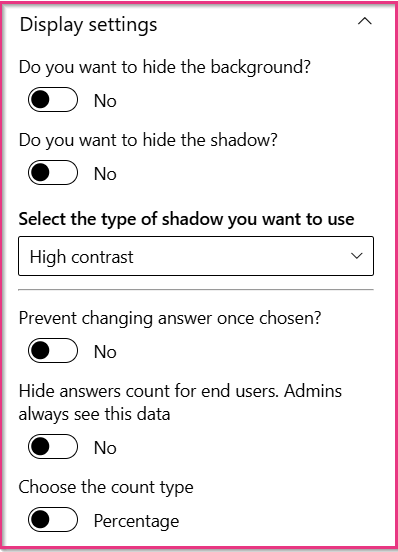
By opening this first configuration, you will see the following options:
* **Do you want to hide the background?** You can choose to hide or display the webpart background The default setting is “No”. This means that, by default, the webpart is characterized by a white background. If you enable this option, the white card background will be completely removed, allowing the content appear directly on the page. As a result, the webpart will be transparent, showing either the selected background image or the chosen SharePoint page color.
* **Do you want to hide the background shadow?**\
You can choose whether to show or hide the background shadow. The default setting is “No”. This means that, by default, the webpart is characterized by a subtle depth effect that can make the webpart stand out more against the rest of the page. If you enable this option, the shadow behind the background will be removed, giving the web part a flatter, cleaner look without any depth.
* **Select the type of background shadow**\
If you decide to set the background shadow, a further configuration will appear and you can select the style from High Contrast, Light, or Dark options.
* If you select **High contrast**, this option creates a strong, bold shadow effect that provides a high level of contrast between the background and the content.
* By choosing the **Light background** shadow, it will create a soft and subtle effect, giving a more delicate and gentle depth to the background.
* Finally, the **Dark background** shadow style provides a darker, more intense effect, adding depth and emphasizing the background even more.
* **Prevent changing answer once chosen?** If you enable this option, users won't be able to change their answer. A message will ask them to confirm their answer before submitting it, as shown in the screenshot below. If this option remains disabled, users will be able to change their answer whenever they wish.
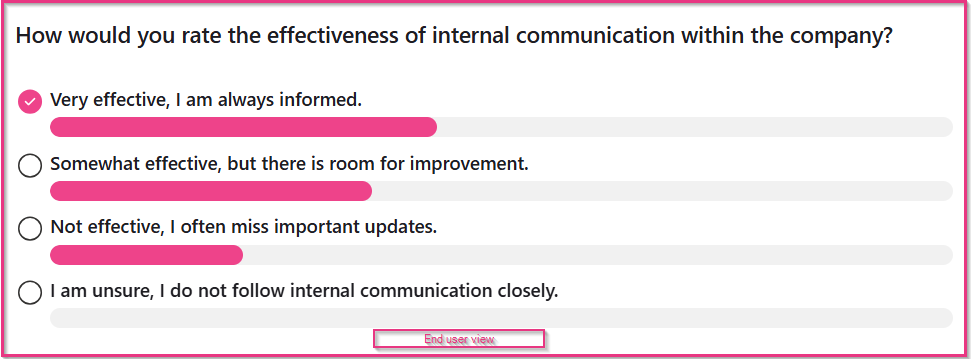
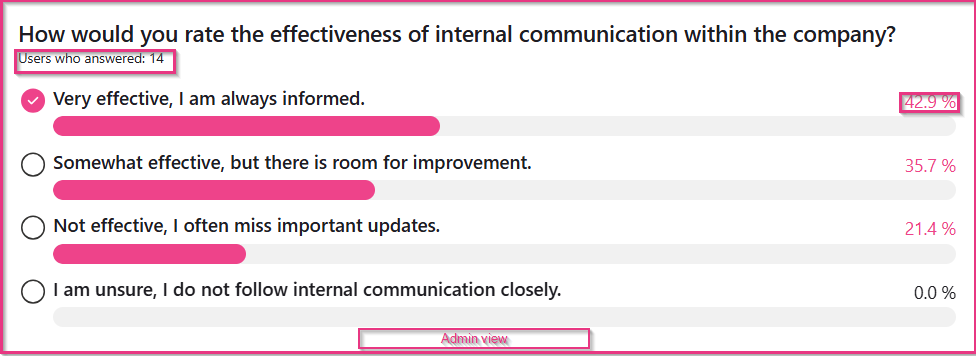
* **Hide answers count for end users. Admins always see this data**: if you enable this option, visitors won't have access to the results of the survey. In other words, they won't see percentages. On the other hand, administrators will always see this data.
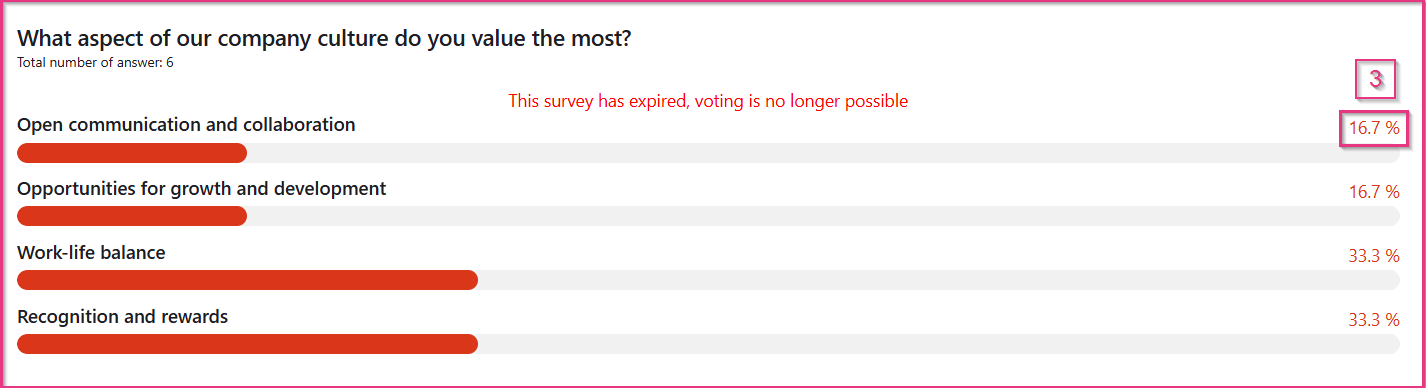
* **Choose the count type**: you can choose between **Percentage** and **Number**. In the former case, each answer option shows the percentage of total votes it received. In the latter case, each answer option shows the number of people who selected that option.
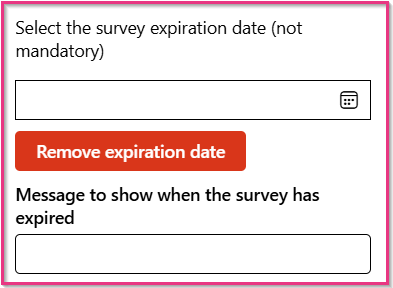
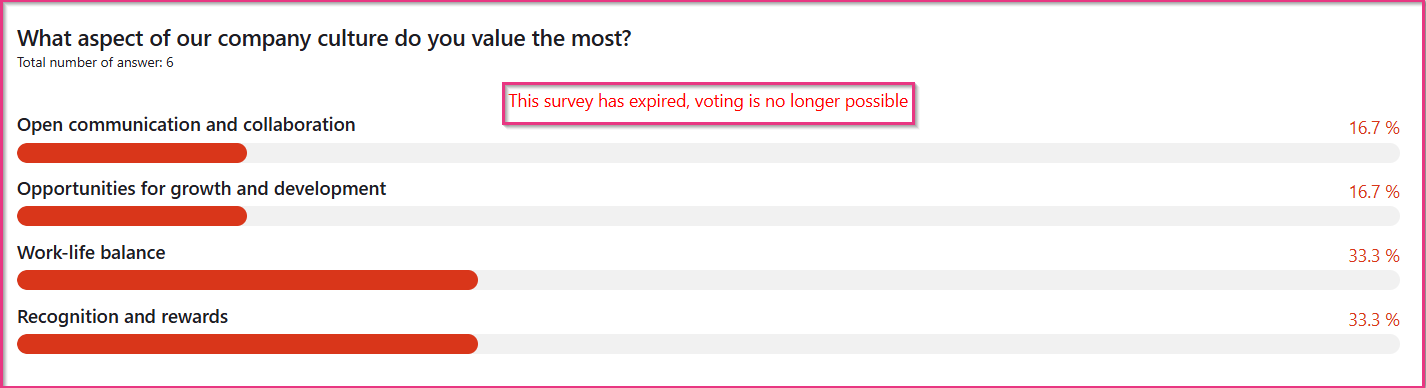
* **Select the survey expiration date (not mandatory)**: you can set an **expiration date** after which voting will no longer be possible. This is an optional field. You can also **remove the expiration date** by clicking the dedicated button.
* When the survey has expired, the web part displays a **message that can be customized** in the dedicated field. If this field remains empty, the default text will be displayed: "Survey expired!"
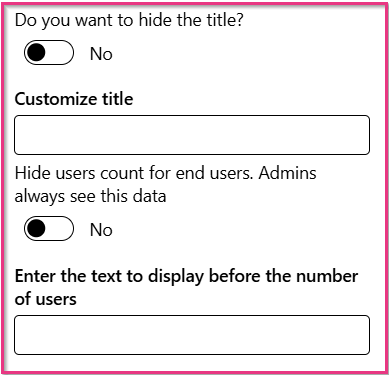
* **Do you want to hide the title?** Here you can select whether to show the webpart title or hide it. If set to visible, the web part title will appear on the left side. You can also customize the title to better suit your content.
* **Hide users count for end users. Admins always see this data:** if you enable this option, visitors won't see the total number of people who took part in the survey. On the other hand, administrators will always see this data.
* **Enter the text to display before the number of users**: you can customize the text introducing the number of users who answered the survey. The default text is "Users who answered", but you can customize it as you wish.
### Color settings
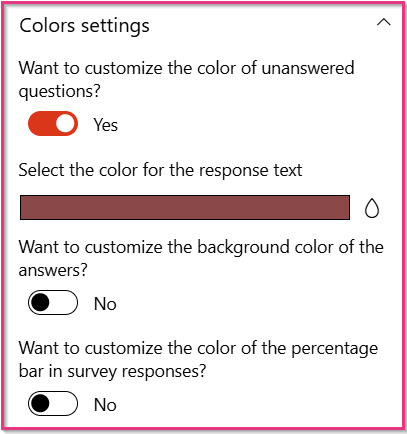
This section allows you to customize the colors of the web part.
{% hint style="info" %}
* If you're not in edit mode already, click **Edit** at the top right of the page.
* Select the Surveys web part, then click **Edit properties** button on the left side of the Surveys web part.
{% endhint %}
You can customize the following elements:
1. The **background color** of the **unanswered questions.** If the you click 'yes', you can choose the color for the response text.
2. The **background color** of the **answers**;
3. The **color** of the **percentage bar** (if you don't select a specific color, the darker color of the intranet's graphic theme is used);
When the configuration is complete, click on **Publish** or **Republish** to publish your changes.
***
## Fill in the Instant Form Questions list
This section explains how to **add a new question** to the **Instant Form Questions** list.
* First of all, click on the **Settings** icon at the top right of the page, then click on **Site contents**.
* Scroll down and select the list named **Instant Form Questions**.
* Each item on this list is a question. To add a new question, click the **New** button.
* By default, the list consists of just one field, i.e., the **Title** field. **Type the question** in the **Title** field and click on **Save**.
* If you want to **translate** the question into one or more languages, you need to create **an additional field for each language**. A detailed explanation of this process is offered in the sub-section below.
### Translate questions into one or more languages
To translate a question into one or more languages, you need an additional field for each language. This field must have a **specific nomenclature**. The nomenclature to adopt is **IAIIFQQuestion + language code.**
[**This link**](https://pkbullock.com/resources/reference-sharepoint-online-languages-ids) offers a list of language tags. However, please use only **lower case letters** and **no hyphen** between the first and the second part of the tag.
> For example, the language code for French is **frfr**. The complete nomeclature for the field dedicated to the French translation would be: **IAIIFQQuestionfrfr**.
To create an additional field, take the following steps:
* In the **Instant Form Questions** list, click on **+Add column**. Select **Text** and click on **Next**.
* In the **Name** field, enter the name of the column. Make sure to adopt the **nomenclature** described above, and save.
* **When creating the field, it is fundamental that you adopt the correct naming convention**. Then, you can **edit the display name** of the field to make it more user-friendly (e.g., "Question FR"). To rename the field, you simply need to select the column and click on **Column settings > Edit**. Edit the name of the column and click **Save**.
Now, translate the question by following these steps:
* Select the question and click the **Edit** button.
* Add the translation by **filling in the newly created field**.
* Click on **Save**.
***
## Fill in the Instant Form Answers list
This section explains how to **add answers** to the **Instant Form Answers** list.
* First of all, click on the **Settings** icon at the top right of the page, then click on **Site contents**.
* Scroll down and select the list named **Instant Form Answers**.
* Each item on this list is an answer. To add a new answer, click the **New** button.
* Fill in the **Title** field by typing the answer.
* Then, specify the **related question**.
* Finally, click on **Save**.
* If you want to **translate** the answer into one or more languages, you need to create **an additional field for each language**. A detailed explanation of this process is offered in the sub-section below.
### Translate answers into one or more languages
To translate an answer into one or more languages, you need an additional field for each language. This field must have a **specific nomenclature**. The nomenclature to adopt is **IAIIFAAnswer + language code**.
[**This link**](https://pkbullock.com/resources/reference-sharepoint-online-languages-ids) offers a list of language tags. However, please use only **lower case letters** and **no hyphen** between the first and the second part of the tag.
> For example, the language code for French is **frfr**. The complete nomeclature for the field dedicated to the French translation would be: **IAIIFAAnswerfrfr**.
To create an additional field, take the following steps:
* In the **Instant Form Answers** list, click on **+Add column**. Select **Text** and click on **Next**.
* In the **Name** field, enter the name of the column. Make sure to adopt the **nomenclature** described above, and save.
* **When creating the field, it is fundamental that you adopt the correct naming convention**. Then, you can **edit the display name** of the field to make it more user-friendly (e.g., "Answer FR"). To rename the field, you simply need to select the column and click on **Column settings > Edit**. Edit the name of the column and click **Save**.
Now, translate the answer by following these steps:
* Select the answer and click the **Edit** button.
* Add the translation by **filling in the newly created field**.
* Click on **Save**.
***
## Configure the Instant Form Users Answers list
The Instant Form Users Answers list requires a **specific configuration** so that intranet visitors can take part in surveys and see survey results. To learn how to configure this list, read the [dedicated guide](https://docs.intranet.ai/sharepoint-intranet/other-configurations/configuration-of-favorites-lists-and-user-lists). In particular, please refer to the **Second type of configuration** section.
{% embed url="" %}

 button on the left of the web part to open the property pane and set options such as General settings, Display settings and Color settings. See below for more information on each of these sections.
***
## Configuration
1. [General settings](#general-settings)
2. [Display settings ](#display-settings)
3. [Color settings](#color-settings)
### General settings
In this section you need to specify the sources from which the web part will retrieve information. Specifically, the Surveys web part relies on three SharePoint lists:
* **Instant Form Questions**, which contains questions;
* **Instant Form Answers**, which contains answers to each question;
* **Instant Form Users Answers**, where users’ answers are recorded.
{% hint style="info" %}
* If you're not in edit mode already, click **Edit** at the top right of the page.
* Select the Surveys web part, then click **Edit properties**
button on the left of the web part to open the property pane and set options such as General settings, Display settings and Color settings. See below for more information on each of these sections.
***
## Configuration
1. [General settings](#general-settings)
2. [Display settings ](#display-settings)
3. [Color settings](#color-settings)
### General settings
In this section you need to specify the sources from which the web part will retrieve information. Specifically, the Surveys web part relies on three SharePoint lists:
* **Instant Form Questions**, which contains questions;
* **Instant Form Answers**, which contains answers to each question;
* **Instant Form Users Answers**, where users’ answers are recorded.
{% hint style="info" %}
* If you're not in edit mode already, click **Edit** at the top right of the page.
* Select the Surveys web part, then click **Edit properties**  button on the left side of the Surveys web part.
{% endhint %}
button on the left side of the Surveys web part.
{% endhint %}

 button on the left side of the Surveys web part.
{% endhint %}
button on the left side of the Surveys web part.
{% endhint %}
 button on the left side of the Surveys web part.
{% endhint %}
button on the left side of the Surveys web part.
{% endhint %}