Media Library

The component that helps you easily browse, preview, and access documents and assets.

What is Media Library

Media Library is a component that presents documents and assets in a unique wall within the intranet, bringing together files from different SharePoint collections, even if managed by different departments. It integrates with Microsoft 365 taxonomies and term sets, allowing users to categorize content through tags and save time in searches. Below is a list of the main features of this web part:

  • Tags and categories: editor users can customize categories and tags to classify company documents and easily retrieve procedures belonging to a specific team, department, event, or project.

  • Latest Files: you can highlight the latest assets published on the intranet to keep the company audience updated.

  • Content indexing: the Media Library component simplifies files access by utilizing SharePoint's capabilities to analyze and index content for search.

In addition to that, Media Library integrates with SharePoint, providing users with essential features for effective document management and retrieval. These include:

  • Versioning for tracking and recovering changes;

  • Real-time sharing;

  • Access control;

  • Monitoring of approval workflows.

  • Targeted notifications whenever a public file is modified;

  • Indexing to make document content searchable.

circle-info

Explore the advantages of Intranet.ai Media Library by clicking here to learn more.


Add the Media Library web part to a SharePoint page

  • If your page is not already in edit mode, click Edit at the top right of the page.

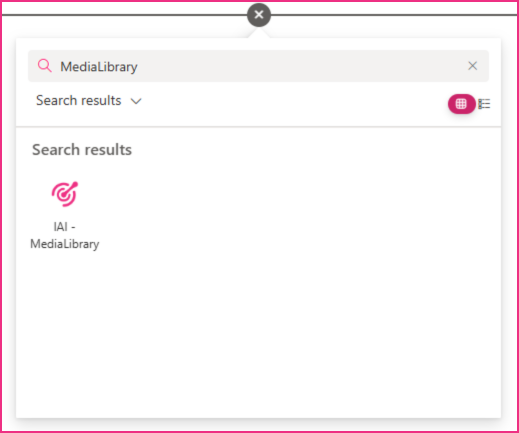
  • Hover your mouse above or below an existing web part and you'll see a line with a circled +, like this:

  • Click on it and, in the web part search box, enter MediaLibrary to quickly find and select the Media Library web part, which is named "IAI - MediaLibrary".

  • Click the Edit properties button on the left of the web part to open the property pane and set options such as Layout settings, List settings, Metadata settings, Filter section, and Display settings. See below for more information on each of these options.


Configuration

Layout settings

The layout settings allows you to customize the appearance of your application by adjusting various layout settings.
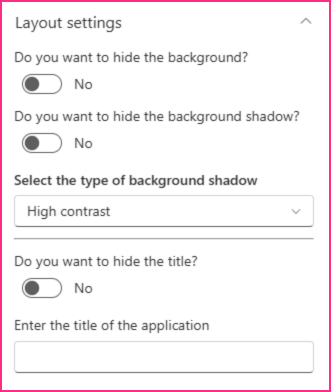
By opening this first configuration, you will see the following options:

  • Do you want to hide the background? You can choose to hide or display the webpart background The default setting is “No”. This means that, by default, the webpart is characterized by a white background. If you enable this option, the white card background will be completely removed, allowing the content appear directly on the page. As a result, the webpart will be transparent, showing either the selected background image or the chosen SharePoint page color.

  • Do you want to hide the shadow? You can choose whether to show or hide the background shadow. The default setting is “No”. This means that, by default, the webpart is characterized by a subtle depth effect that can make the webpart stand out more against the rest of the page. If you enable this option, the shadow behind the background will be removed, giving the web part a flatter, cleaner look without any depth.

  • Select the type of shadow you want to use: if you decide to set the background shadow, a further configuration will appear and you can select the style from High Contrast, Light, or Dark options.

    • If you select High contrast, this option creates a strong, bold shadow effect that provides a high level of contrast between the background and the content.

    • By choosing the Light background shadow, it will create a soft and subtle effect, giving a more delicate and gentle depth to the background.

    • Finally, the Dark background shadow style provides a darker, more intense effect, adding depth and emphasizing the background even more.

  • Do you want to hide the title? Here you can select whether to show the webpart title or hide it. If set to visible, the web part title will appear on the left side.

  • Enter the application title: thanks to this configuration, you can customize the application title. If you keep it blank, SharePoint will show the default title “Leadership Team” at the top left angle of the webpart.


Data sources

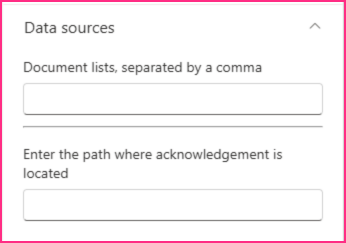
In this section, you need to indicate the documents libraries from which the webpart will retrieve documents.

  • Enter the URL of the document library in which your documents are collected. As explained, this component can bring together files from different document libraries; this means that here you can write different URLs, separated by a comma (please, do not use spaces).

circle-info

It is recommended to create a documents subsite to collect document libraries. See the section titled Create a documents subsitearrow-up-right to learn how to do so.

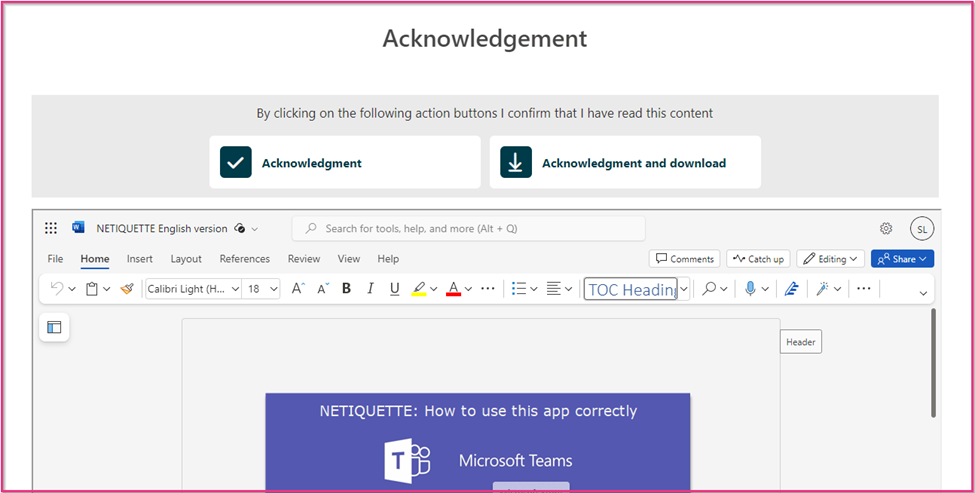
Enter the path where the acknowledgment is located: This field is to be filled in only if the Acknowledgement system has been activated. In such a case, here you need to enter the URL of the page where the Acknowledgement web part is configured. This way, all the documents will be opened through the "Acknowledgement" page, and users will have the possibility to confirm that they have read the files. If this field is left blank, the documents will be opened in a standard way. The following screenshots provide examples of these two possibilities:

File opened through the "Acknowledgement" page
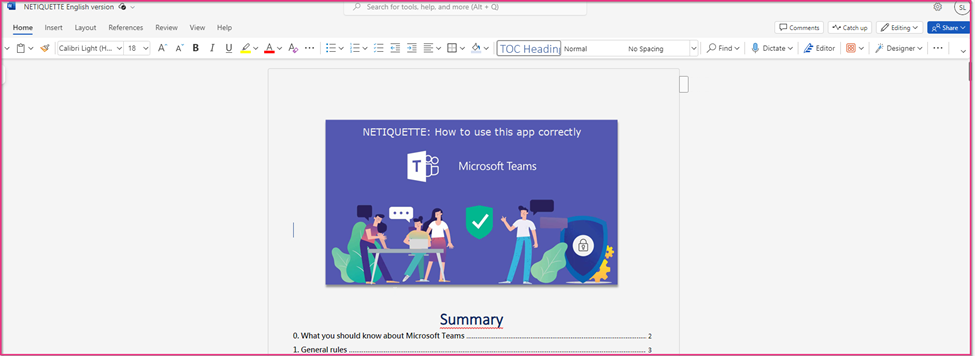
File opened in Word Online
Filters settings

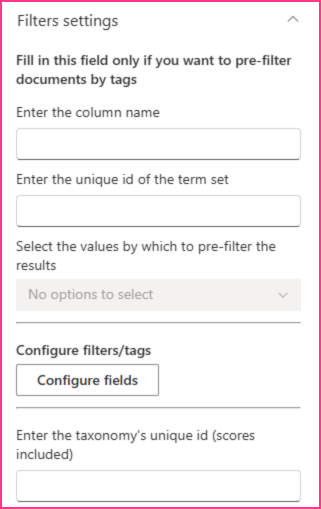
You should fill out this section if you need to set which assets each user will see in the webpart. It helps to classify documents based on a specific metadata. For example, if documents items are tagged by “category,” only those from a specific category will be displayed.

  • Enter the column name: enter “owstaxId” plus column name that you have set to assign documents tags. You must fill in this field if you prefer to pre-filter documents by tags. Only documents with specific tags will be included.

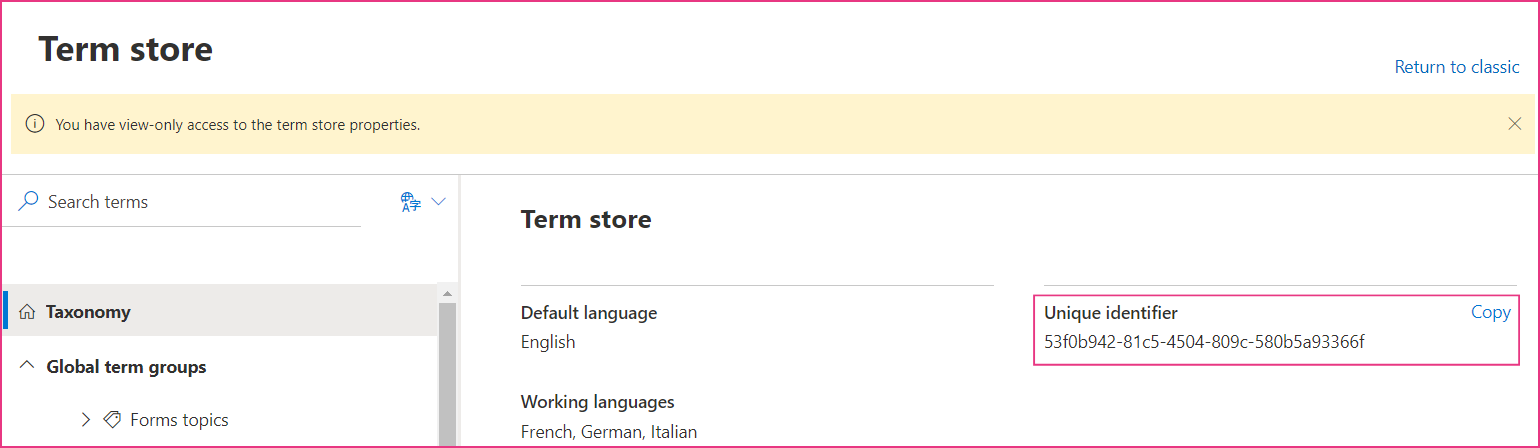
  • Enter the unique id of the term set: copy and paste the id of the desired term set (which you can find in the Term store). You need to fill in this field only if your tenant has more than one Term store.

circle-info

Click herearrow-up-right to access the Term store.

circle-info

Click herearrow-up-right for more information about the creation of tag systems for news and documents.

  • Then, select values to pre-filter the results: you can choose the tags for the documents you prefer to display in the Documents webpart.

  • Configure filters/tags: in this window, you can configure the various filters to be applied to your documents. By filling in this fields. the available filters for the documents will appear.

  • In the first column, write: owstaxId + the name of the column used to assign metadata to the news. For example, owstaxIdIAINewsTags.

  • In the second column, copy-paste the id of the term set. To do this, go to the Term store and find the id of the term set. Enter the taxonomy’s unique id of the term set (scores included): copy and paste the id of the desired term set (which you can find in the Term store), including scores. You need to fill in this field only if your tenant has more than one Term store.

circle-info

Click herearrow-up-right to discover how to configure the id of the term set store.

  • In the third column, enter the custom filter name you wish to apply. This is a name used to identify a filter you are creating, which will be applied to the news items. The custom filter helps organize and narrow down the displayed content based on specific criteria.

  • Show filter? Indicate whether the filter dropdown should be displayed to users. Flag this option if you want users to see and interact with the filter dropdown; leave it unflag it if you want to hide it.

  • Show tag? Determine if the tags assigned to the news should be displayed in the news preview. Flag this option to show the tags; unflag it if they should be hidden from view.

  • Show search field? Specify if a search bar should be shown in the filter dropdown to allow users to search for a specific tag. If you want a search bar to appear, flag this option; otherwise, unflag it. This functionality can be useful in case you think you’re going to have a large number of tags.

  • Stop reordering: This option prevents the ability to reorder items. By default, the webpart sorts tags alphabetically. However, there might be cases (such as the Months) you might need to sort by the same order set in the Term Store. That said, flag this option if you want to follow the same sorting order available in the Term store, or unflag it if you want to keep the alphabetical order.

  • Open filter by default? Indicate whether the filter dropdown should be automatically applied when the page or view loads. Flag this option if you want the filter to be open as soon as the page starts; unflag it if you don’t.

  • Insert filter persistency? When a user selects this filter configured as persistent within the web part settings, that filter will be stored for the individual user. As a result, if the user navigates away from the page and later returns to the Documents web part, the previously selected persistent filters will be automatically reapplied.

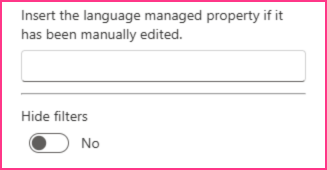
  • Insert the language managed property if it has been manually edited: Here you need to insert the internal name of the language managed property if it has been manually edited. If you leave this field blank, the default internal name will be used: owstaxIdIAILanguage.

  • Hide filters: this setting allows you to show or hide filters, such as the favorites filter, on the right side of the web part. If you select 'Yes,' the filters (also the search bar) will be hidden from the documents in the web part. If you select 'No,' the filters will remain visible.


General settings

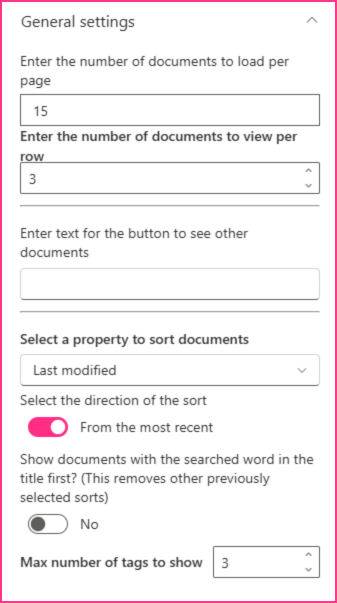
In this section, you need to set general options for document management, such as the sorting direction, the number of documents to load, and other configurations.

  • You can choose the number of assets to load.

  • You can decide how many items you'd like to show per line.

  • Enter text for the button to see other documents: This configuration allows you to enter custom text for the button. When clicked, the button will enable the user to view other documents.

  • Select a property to sort documents: you can choose to sort documents by modification date, creation date, filename or title. Select your preferred option from the drop-down menu.

  • Select the direction of the sort: you can decide to order documents from the most recent or from the least recent.

  • Show documents with the searched word in the title first? As regards the last option, it should be specified that the web part includes a search bar which allows you to quickly find content. if you enter a word in the search bar, the web part will show only documents that contain the searched word in the title and in the body of the text. If you enable the last option of the Order Settings, the documents that contain the searched word in the title will be shown first.

Access the term store

  1. Click on the settings icon at the top right of the page, then click on Site information.

  1. Click on View all site settings.

  1. Under Site Administration, click on Term store management.

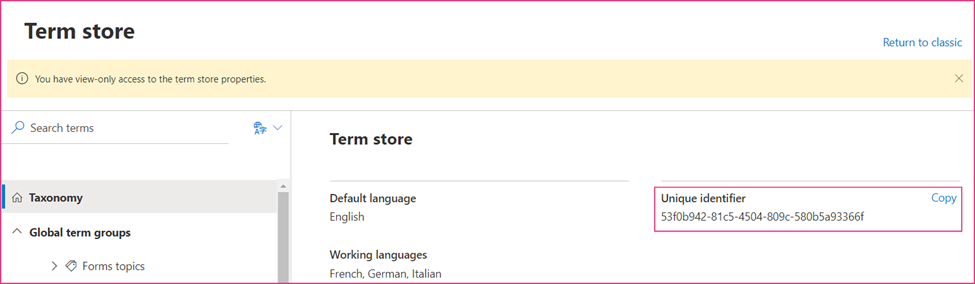
  1. You will land on the Term store, which is the area where you can create term sets and terms, i.e. tags to categorize your content. Here you can find the unique identifier of the taxonomy, which is a code composed of numbers, letters and hyphens.

  1. After having assigned tags to documents, you need to configure filters. This feature allows you to filter documents by specific tags; when you do so, the web part displays only documents that belong to the selected category or categories.

Please refer to our guide "Creation of tag systems for news and documents"arrow-up-right to learn how to create term sets in the Term store, add columns of the managed property type to a document library, and assign tags to documents.

circle-info

It is recommended to create a documents subsite to collect document libraries. See the section titled Create a documents subsitearrow-up-right to learn how to do so.

circle-info

Here you need to insert the URL of the entire document library; it is not possible to insert the URL of a subfolder within it. If you want to show only specific documents within the library, you can use metadata and take advantage of the pre-filter option (see "Filters settingsarrow-up-right").

  • Enter the taxonomy's unique id. You need to fill in this field only if your tenant has more than one Term store. To access the Term store, which is a section of the Administration Area of the site, you need to take the following steps:

    • Click on the Settings icon at the top right of the page, then click on Site information.

    • Click on View all site settings.

    • Under Site Administration, click on Term store management.

    • You will land on the Term store, which is the area where you can create term sets and terms, i.e. tags to categorize your content. Here you can find the unique identifier of the taxonomy, which is a code composed of numbers, letters and hyphens.

  • After having assigned tags to documents, you need to configure filters. This feature allows you to filter documents by specific tags; when you do so, the web part displays only documents that belong to the selected category or categories.

For example, if your document library contains files written in different languages, you may want to filter documents by language, e.g. English, French, Italian and so on.

circle-info

Please refer to our guide "Creation of tag systems for news and documents"arrow-up-right to learn how to create term sets in the Term store, add columns of the managed property type to a document library, and assign tags to documents.

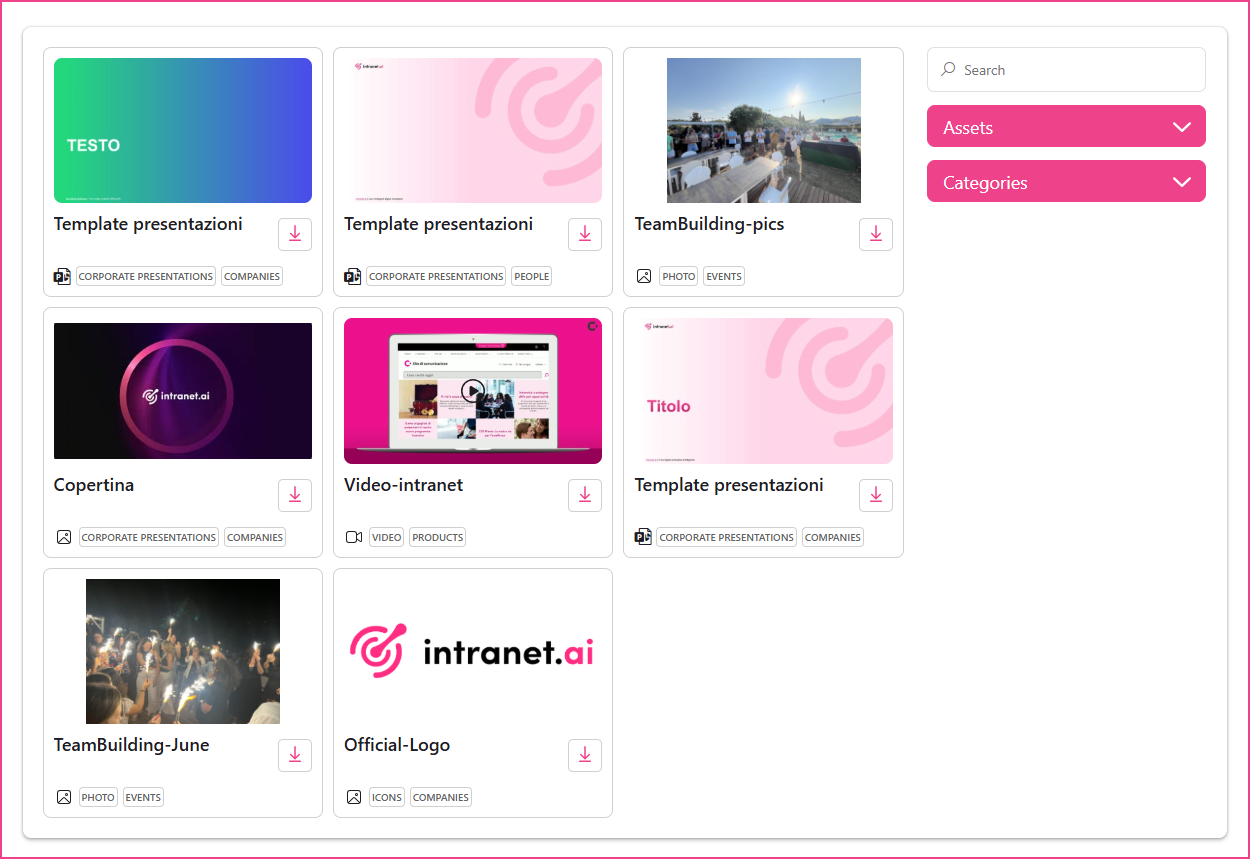
Here is an example of what Media Library looks like once the configuration is complete:

The web part is composed of the following elements:

  • A wall of assets, which includes the preview and the corresponding information: filename and tags. As can be seen in the screenshot above, each file type is identified by a specific icon.

  • A download icon. By clicking on this symbol, you can download a document.

  • A search bar which allows you find documents more quickly. You just need to type a word in the search bar to retrieve files containing the searched word in the title or in the body of the text.

  • The filters section, which consists of drop-down menus. They allow you to retrieve documents that belong to specific categories.

circle-info

The Media Library web part does not read folders. This means that if the document library contains folders, the component will display all the files in the form of a wall, without reproducing their organization into folders. However, if you wish to display folders in your documentary area, you can use the Company Documents with Foldersarrow-up-right web part, which is explained in a dedicated guide.

Create a documents subsite

A subsite is a site within a parent site that helps you organize and manage content. In particular, it is recommended to create a subsite to collect and manage document libraries. Here is how to do so:

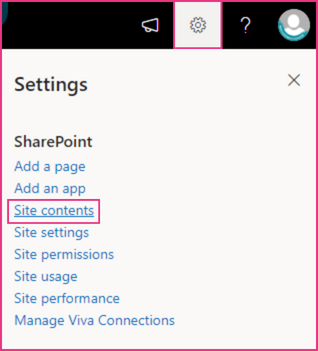
  • Click on the Settings icon at the top right of the page, then click on Site contents.

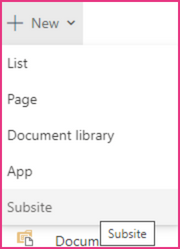
  • Click on New > Subsite.

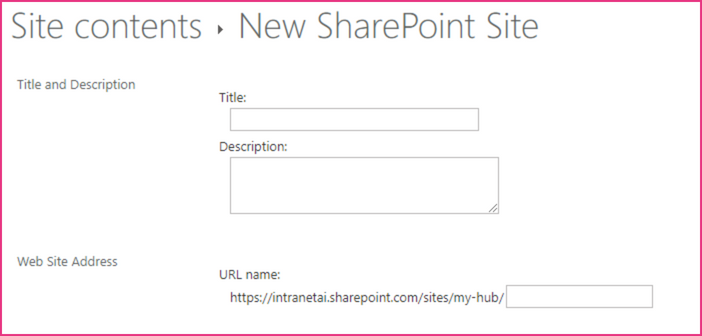
  • You will land on an interface where information on the subsite is required. The first fields to fill in are Title, Description and URL name.

  • Enter the title, i.e. the name of the site.

For example: documents

  • If you want, you can also write a description, but this is not mandatory.

  • Complete the URL name by entering the title you chose.

For example: https://intranetai.sharepoint.com/sites/my-hub/documents

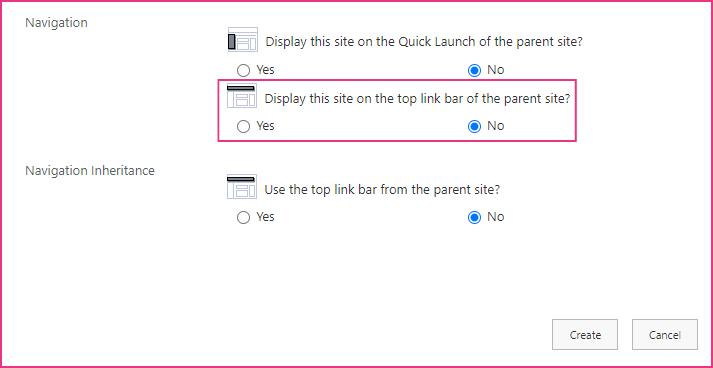
  • Keep the default settings, except for the second to last choice: the default option is Yes, change it to No, so that the site will not be displayed on the top link bar of the parent site.

  • Finally, click on Create.

To create a new document library in your subsite, follow these steps:

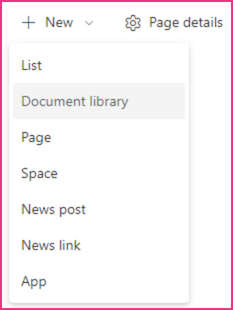
  • Click on New > Document library.

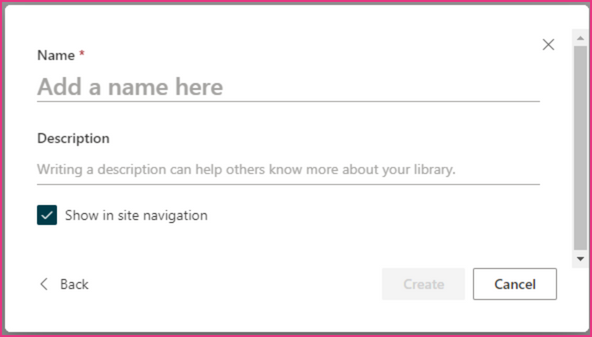
  • Click on Blank library. The following pop-up will appear:

  • Enter the name of the document library. Please, avoid spaces; use capital letters instead, so that the library URL will be cleaner.

For example: GraphicMaterials, Guidelines, Procedures

  • If you want, you can also enter a description, but this is not mandatory.

  • Leave the Show in site navigation box flagged.

  • Click on Create.

Now, you just need to click on Upload to add files to the document library. When configuring Media Library, you will need to copy and paste the URL of this document library into the related field in the General Settings, as explained in the sub-section titled General Settingsarrow-up-right.

Last updated